TL;DR: Convert complex HTML into clean, readable Markdown using C# with our .NET Word Library, making your content easier to manage and understand. It helps streamline workflows for Git, documentation, and publishing while giving you full control to customize images and fine-tune the output. The result is lightweight, maintainable content that’s easier to collaborate on without the clutter and noise of raw HTML.
HTML is great for building rich, interactive web experiences, but it’s not always the most practical format for documentation, version control, or lightweight publishing.
Ever tried reviewing a pull request filled with HTML tags and inline styling? Or maintaining content where the markup outweighs the actual text?
Markdown solves this problem by providing a lightweight, readable format that preserves content structure while making documents easier to edit, review, and maintain.
In this article, you’ll learn how to convert HTML to Markdown in C# using the Syncfusion® .NET Word Library and customize the conversion process for real-world scenarios.
Explore Now
Why convert HTML to Markdown?
Markdown is widely used across modern development and documentation ecosystems because it strikes a balance between readability and structure.
Converting HTML to Markdown can help you:
-
Simplify content review and editing by reducing markup complexity.
-
Produce cleaner diffs when using Git and other version control systems.
-
Prepare content for static site generators such as Jekyll, Hugo, and Docusaurus.
-
Migrate content between documentation platforms and CMS systems.
-
Reuse existing HTML content in Markdown-based publishing workflows.
-
Reduce maintenance overhead when managing large documentation repositories.
With these benefits in mind, let’s walk through the process of converting HTML to Markdown in C# using our .NET Word Library.
Step-by-step guide: Convert HTML to Markdown in C#
Step 1: Install the required NuGet Package
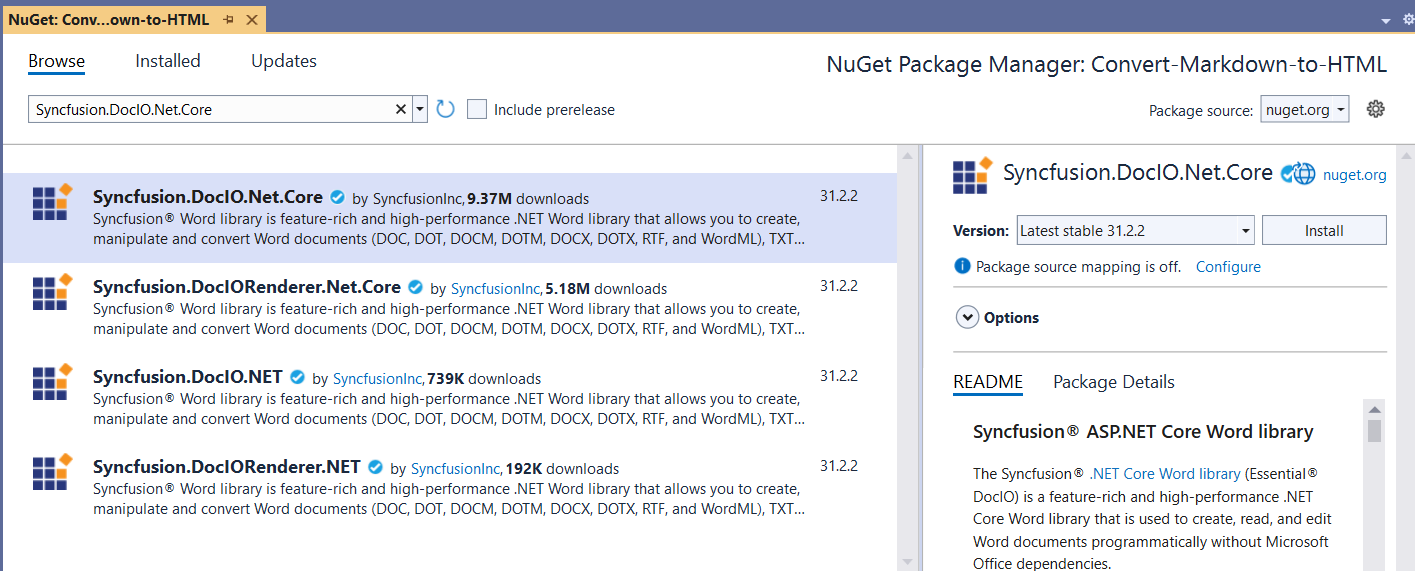
Start by installing the Syncfusion.DocIO.Net.Core package from the NuGet Gallery. This package provides the WordDocument API, which can import HTML content and export it to Markdown format.
Step 2: Import the necessary namespaces
Then, add the following namespaces to your C# file.
using Syncfusion.DocIO;
using Syncfusion.DocIO.DLS;
Step 3: Convert HTML to Markdown
Use the following code to load an HTML file and convert it to Markdown format.
using (FileStream fileStreamPath = new FileStream(Path.GetFullPath(@"../../../Input.html"), FileMode.Open, FileAccess.Read, FileShare.ReadWrite))
{
    //Load an existing HTML file.
    using (WordDocument document = new WordDocument(fileStreamPath, FormatType.Html))
    {
        //Create a file stream.
        using (FileStream outputFileStream = new FileStream(Path.GetFullPath(@"../../../HTMLToMarkdownTo.md"), FileMode.Create, FileAccess.ReadWrite))
        {
            //Save the Word document in Markdown Format.
            document.Save(outputFileStream, FormatType.Markdown);
        }
    }
}
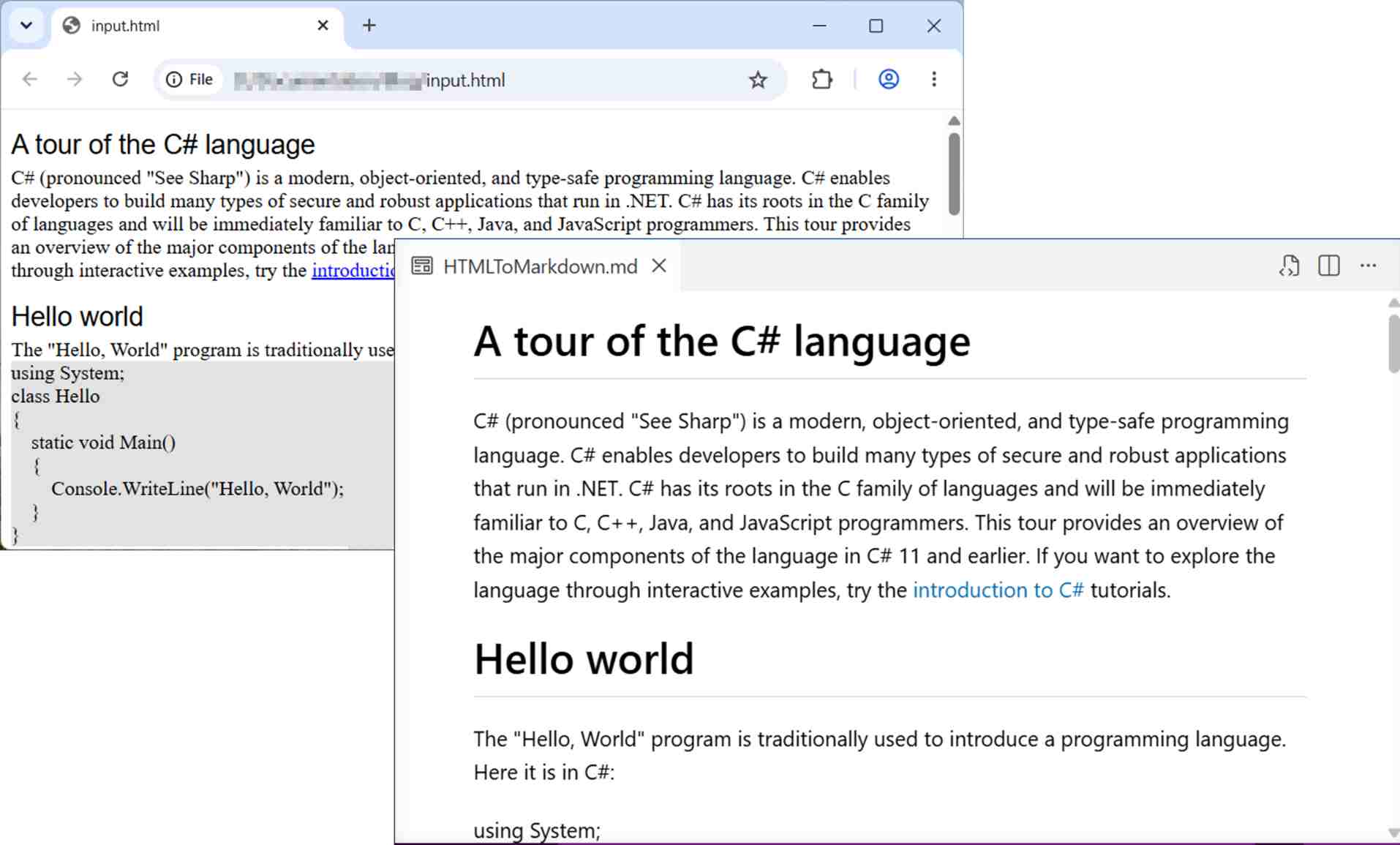
After running this code, the HTML content will be successfully converted into a Markdown (.md) file, as shown in the output preview below.

Read Now
Advanced image customization options
HTML documents often contain images stored as local files, remote URLs, or base64-encoded data. When converting HTML to Markdown, you may need greater control over how these images are resolved and included in the output.
The .NET Word Library (DocIO) provides the ImageNodeVisited event, allowing you to customize image processing during HTML import before exporting the content to Markdown.
Common scenarios include:
-
Replacing placeholder images with branded assets.
-
Loading images from local folders during conversion.
-
Downloading and embedding remote images.
-
Processing base64-encoded images.
-
Applying custom image resolution logic through the ImageNodeVisited event.
Hook the ImageNodeVisited event
The ImageNodeVisited event is triggered whenever DocIO encounters an image while importing HTML. By handling this event, you can provide custom image streams from local files, remote URLs, or other sources.
The following example demonstrates how to register the event and intercept image processing during HTML import.
//Open a file as a stream.
using (FileStream fileStreamPath = new FileStream(Path.GetFullPath(@"../../../Data/Input.html"), FileMode.Open, FileAccess.Read, FileShare.ReadWrite))
{
    //Create a Word document instance.
    using (WordDocument document = new WordDocument())
    {
        //Hooks the ImageNodeVisited event to open the image from a specific location.
        document.HTMLImportSettings.ImageNodeVisited += OpenImage;

        //Open an existing HTML file.
        document.Open(fileStreamPath, FormatType.Html);

        //Unhooks the ImageNodeVisited event after loading HTML.
        document.HTMLImportSettings.ImageNodeVisited -= OpenImage;

        //Create a file stream.
        using (FileStream outputFileStream = new FileStream(Path.GetFullPath(@"../../../HTMLToMarkdown.md"), FileMode.Create, FileAccess.ReadWrite))
        {
            //Save the Word document in Markdown Format.
            document.Save(outputFileStream, FormatType.Markdown);
        }
    }
}
What this changes: Now, every time DocIO encounters an image in the HTML file, it calls your handler, giving you a chance to provide the actual image stream.
Implement the image processing logic
The following event handler shows how to customize image handling based on the image source path.
private static void OpenImage(object sender, ImageNodeVisitedEventArgs args)
{
    //Retrieve the image from the local machine file path and use it.
    if (args.Uri == "Road-550.png")
        args.ImageStream = new FileStream(Path.GetFullPath(@"../../../Data/" + args.Uri), FileMode.Open);

    //Retrieve the image from the website and use it.
    else if (args.Uri.StartsWith("
    {
        WebClient client = new WebClient();

        //Download the image as a stream.
        byte[] image = client.DownloadData(args.Uri);
        Stream stream = new MemoryStream(image);

        //Set the retrieved image from the input HTML.
        args.ImageStream = stream;
    }

    //Retrieve the image from the base64 string and use it.
    else if (args.Uri.StartsWith("data:image/"))
    {
        string src = args.Uri;
        int startIndex = src.IndexOf(",");
        src = src.Substring(startIndex + 1);

        byte[] image = System.Convert.FromBase64String(src);
        Stream stream = new MemoryStream(image);

        //Set the retrieved image from the input HTML.
        args.ImageStream = stream;
    }
}
What this code does:
- Replace a specific filename with a different image (e.g., branding, placeholders).
- Download remote images and embed them during conversion.
- Convert
base64image strings into real image streams.
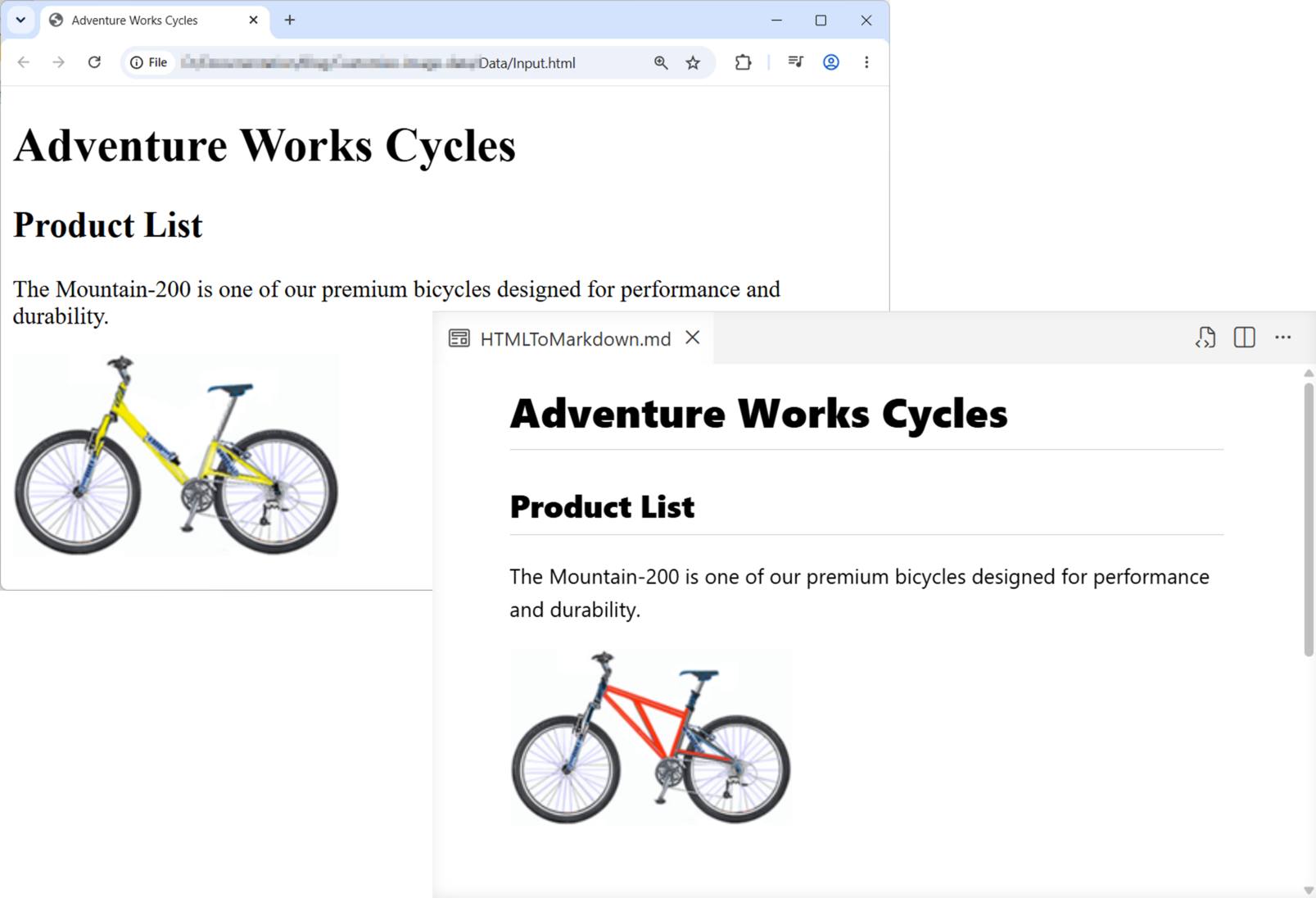
After executing the code examples above, all images in the HTML document will be processed according to your custom logic and correctly included in the generated Markdown file, as illustrated in the output preview.
Try Now
Real-world use cases
Here are a few practical scenarios where the .NET Word Library can be used effectively in HTML-to-Markdown conversion:
- Static site generation: Convert rich HTML content into Markdown for use with static site generation.
- Version-controlled documentation: Transform HTML-based help pages or guides into Markdown for easier collaboration in Git repositories.
- Content simplification: Strip down styled HTML emails, blog posts, or web articles into Markdown for reuse in plain-text formats or internal documentation.
- Developer wikis: Migrate HTML-based knowledge bases into Markdown to support lightweight, searchable internal wikis.
- Markdown-based CMS: Reformat HTML content for integration into Markdown-driven content management systems.
- Localization pipelines: Convert HTML content to Markdown to simplify translation and reduce formatting overhead.
GitHub reference
For more details, find all the examples for converting HTML to Markdown in C# using the Word library in the GitHub repository.
Frequently Asked Questions
What CSS selectors are supported in DocIO?
The .NET Word Library supports all basic CSS selectors in HTML conversion. To know more about supported CSS selectors, refer to this documentation.
Does HTML-to-Markdown conversion work on Linux or macOS with .NET Core?
Yes, the .NET Word Library works in .NET Core applications on Linux and macOS.
Is it possible to convert HTML to Word/PDF?
Yes, an HTML file can be converted to Word/PDF using the .NET Word library. To know more about conversion, refer to this documentation.
Can tables be converted from HTML to Markdown using the Syncfusion .NET Word Library?
Yes. Standard HTML tables can be converted to Markdown table syntax, depending on the complexity of the source content.
Can I process multiple HTML files in a batch using the .NET Word Library?
Yes. The conversion API can be integrated into batch-processing workflows to convert multiple HTML files programmatically.
Try It Free
Ready to turn messy HTML into clean, scalable Markdown?
Converting HTML to Markdown in C# isn’t just a convenience; it’s a productivity upgrade. Whether you’re streamlining documentation, improving Git diffs, or powering static site pipelines, this approach helps you ship content that’s easier to read, maintain, and scale.
With Syncfusion .NET Word Library, you get more than just conversion. You gain precise control over content structure, flexible image handling, and seamless integration into modern .NET apps, so your output stays clean without losing meaning.
Why go further with the Word Library?
- Automate document workflows: Create, read, and edit Word files programmatically with ease.
- Generate dynamic reports: Use mail merge to build complex, data-driven documents.
- Organize at scale: Merge, split, and structure documents efficiently.
- Convert across formats: Export to HTML, RTF, PDF, images, and more from a single API.
Explore real-world examples on GitHub, dive deeper into the documentation, and see what’s possible.
Already using Syncfusion? Download the latest setup and start building. New here? Grab your free 30-day trial and try it in your next project.
Need help or have questions? Our support team is ready. Connect via the support forum, support portal, or feedback portal at anytime.
PakarPBN
A Private Blog Network (PBN) is a collection of websites that are controlled by a single individual or organization and used primarily to build backlinks to a “money site” in order to influence its ranking in search engines such as Google. The core idea behind a PBN is based on the importance of backlinks in Google’s ranking algorithm. Since Google views backlinks as signals of authority and trust, some website owners attempt to artificially create these signals through a controlled network of sites.
In a typical PBN setup, the owner acquires expired or aged domains that already have existing authority, backlinks, and history. These domains are rebuilt with new content and hosted separately, often using different IP addresses, hosting providers, themes, and ownership details to make them appear unrelated. Within the content published on these sites, links are strategically placed that point to the main website the owner wants to rank higher. By doing this, the owner attempts to pass link equity (also known as “link juice”) from the PBN sites to the target website.
The purpose of a PBN is to give the impression that the target website is naturally earning links from multiple independent sources. If done effectively, this can temporarily improve keyword rankings, increase organic visibility, and drive more traffic from search results.