TL;DR: The Syncfusion JavaScript PDF Viewer lets developers quickly add a full‑featured PDF editor to any web app. Users gain powerful tools for annotations, signatures, form fields, and page organization, while developers benefit from fast CDN integration, customizable toolbars, and APIs for complete control. The result: a secure, scalable, and intuitive PDF experience that saves time and delivers better workflows.
Transform your web app into a powerful PDF editor
Can you really edit PDFs directly in your web app with JavaScript?
You’re not alone; millions share your question.
With businesses shifting to digital-first workflows, demand for seamless, browser-based PDF editing tools is soaring. Developers and product teams want a JavaScript PDF Editor with robust features, easy integration, and customization to match their app’s look and feel.
This is where Syncfusion® JavaScript PDF Viewer stands out. It’s built on a robust viewer but delivers much more than just viewing capabilities.
With robust built-in editing capabilities, it transforms your web app into a full-featured online PDF editor.
You can highlight text, add fields, organize pages, and sign documents, all from one tool. It delivers a modern PDF editing experience without hassle.
In this blog, we’ll explore how you can build a complete JavaScript PDF Editor for your web apps with Syncfusion. Let’s dive in!
Set up your JavaScript PDF editor with Syncfusion
Integrating Syncfusion JavaScript PDF Viewer into your project is straightforward. Let’s see the step-by-step procedures from creating the files to launching your PDF editor in the Web browser.
Step 1: Create a project folder
Start by creating a dedicated folder for your application, for example, my-app. This folder will contain all your project files, including the HTML page that hosts the Syncfusion JavaScript components.
Step 2: Use the global script and style from CDN
The JavaScript components are hosted on Syncfusion’s CDN, making integration quick and easy without installing packages. You just need to include the following script and style links in your HTML file.
Script:
Style: https://cdn.syncfusion.com/ej2/31.2.2/material3.css
Step 3: Create an HTML file
Inside your my-app folder, create an index.html file. Add the Syncfusion CDN references for scripts and styles, then include a div element to host the PDF Viewer. Finally, initialize the Syncfusion JavaScript PDF Viewer component using the script.
<html>
<head>
    <title>Essential JS 2 PDF Viewer</title>
    <!-- Common Material 3 Theme -->
    <link href=" rel="stylesheet">
    <!-- Essential JS 2 Script -->
    <script src=""></script>
    <script src="
</head>
<body>
    <div id="PdfViewer" style="height:580px;width:100%;"></div>
    <script>
        // Initialize PDF Viewer
        var pdfviewer = new ej.pdfviewer.PdfViewer({
            documentPath: '
            resourceUrl: '
        });

        // Inject required modules
        ej.pdfviewer.PdfViewer.Inject(
            ej.pdfviewer.TextSelection, ej.pdfviewer.TextSearch, ej.pdfviewer.Print,
            ej.pdfviewer.Navigation, ej.pdfviewer.Toolbar, ej.pdfviewer.Magnification,
            ej.pdfviewer.Annotation, ej.pdfviewer.FormDesigner, ej.pdfviewer.FormFields,
            ej.pdfviewer.PageOrganizer
        );

        // Render PDF Viewer
        pdfviewer.appendTo('#PdfViewer');
    </script>
</body>
</html>
Step 4: Launch the page in the browser
Once you’ve created the index.html file with all the required CSS, Style CDN links, and PDF Viewer initialization code, simply open the file in any modern web browser (Chrome, Edge, or Firefox). The Syncfusion JavaScript PDF Viewer will load instantly, displaying the sample PDF document.
Note: For more details, refer to the getting started with Syncfusion JavaScript PDF Viewer documentation.
Customize the JavaScript PDF Viewer’s toolbar for your web app
Toolbar customization is a must-have feature for developers building modern web apps. Yet many JavaScript PDF editors still fall short.
A flexible toolbar lets you simplify the layout by removing unused tools or adding custom actions tailored to your users’ needs.
Replace the default toolbar with your own custom toolbar actions
Syncfusion offers advanced customization options that let you fully personalize the toolbar in your JavaScript PDF Editor app.
The JavaScript PDF Viewer allows you to:
- Add custom icons for unique actions,
- Create new groups to organize tools, and
- Implement complex, app-specific actions.
All designed to give you complete control over the user interface and align it perfectly with your app needs.
When a custom toolbar is required, the default toolbar can be removed using the enableToolbar property during initialization or the showToolbar method at runtime. This will give you the flexibility to design a truly tailored experience.
Refer to the following image.

Use the built-in themes of JavaScript PDF Viewer
Beyond the custom toolbar, Syncfusion also provides multiple built-in themes that instantly enhance the look and feel of the PDF Viewer toolbar, including:
- Material
- Bootstrap
- Fluent
These themes ensure consistent styling across your app, enhance visual appeal, and help you maintain brand alignment effortlessly.
Note: For more details, refer to the JavaScript PDF Viewer’s toolbar customization, theme styling, and appearance options.
Add PDF annotation for interactive document editing
Annotations turn static PDFs into dynamic, interactive documents.
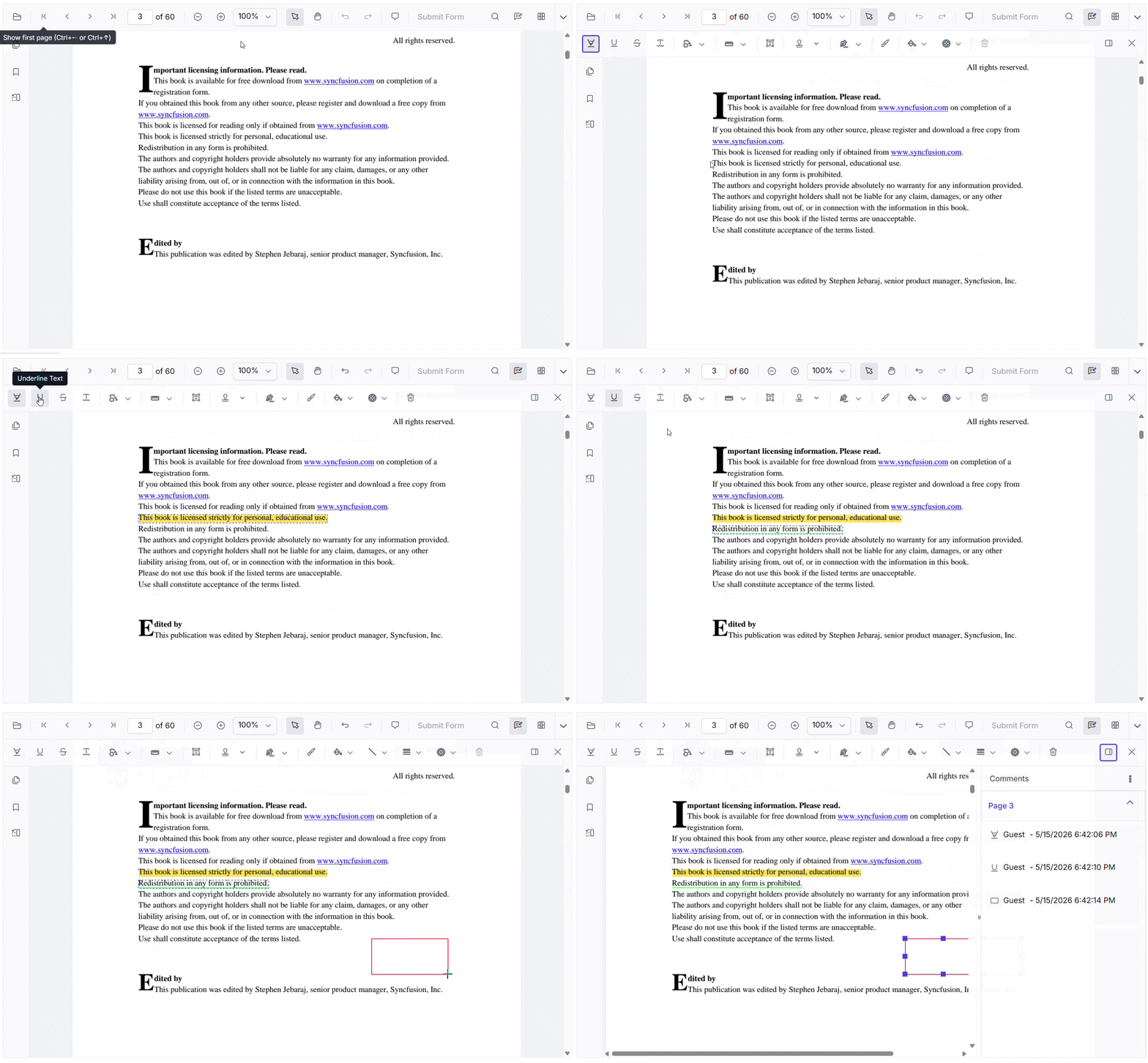
Syncfusion JavaScript PDF Viewer lets you add the following annotations while preserving the original content:
- Highlight text,
- Underline important points,
- Add shapes,
- Insert sticky notes and more.
Users can easily review, markup, and organize information, or even print documents with or without annotations.
Users can also add annotations directly by clicking the Annotation option in the built-in toolbar and selecting the desired annotation type, such as Highlight, Underline, or Shape.
See the following GIF image for more visual clarity.
Programmatic interaction with annotations
Syncfusion doesn’t just stop at UI-based annotation tools; it gives developers complete control through powerful APIs.
You can programmatically add highlights, shapes, ink, free text, stamps, or sticky notes, update existing annotations, or remove them entirely with just a few lines of code.
<button id="highlight">Add TextMarkup annotation programmatically</button>let highlight = document.getElementById('highlight');
if (highlight) {
highlight.addEventListener('click', function () {
if (pdfviewer) {
pdfviewer.annotation.addAnnotation("Highlight", {
bounds: [{ x: 97, y: 250, width: 350, height: 14 }],
pageNumber: 3
});
}
});
}
The above steps cover the basics of adding annotations using a toolbar and interacting with them programmatically, but Syncfusion offers much more.
Explore all annotation types and advanced customization options with detailed code examples.
Simplify PDF signing with handwritten signature support
Signatures turn a simple PDF into an official document. Whether you’re signing a contract, approving a proposal, or confirming an agreement, adding a signature is essential for trust and compliance.
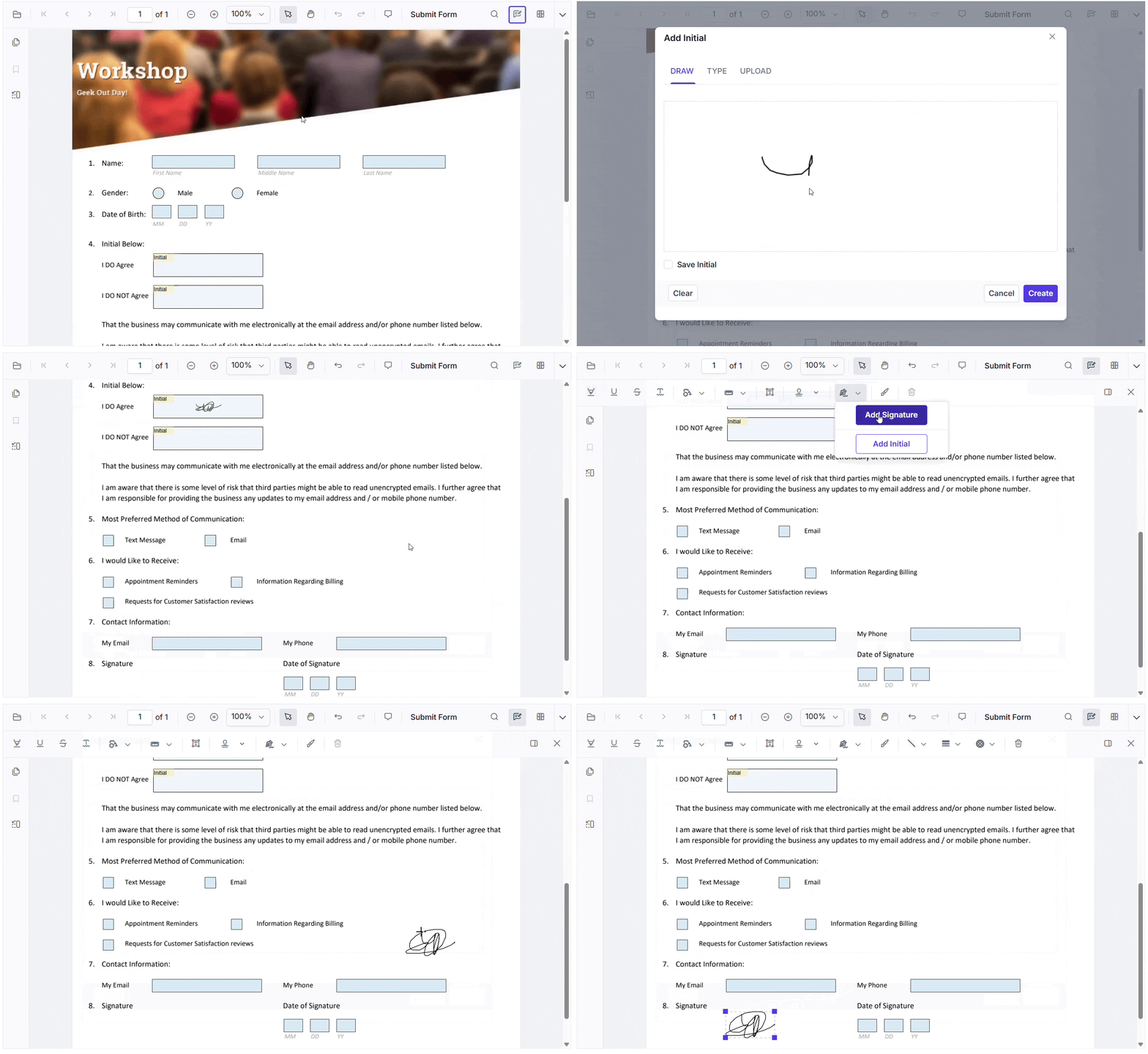
With our JavaScript PDF Viewer, users can draw or type signatures as annotations or fill signature fields in forms. This makes signing fast, easy, and secure.
Users can add signatures using the built-in UI, or developers can apply the same signature programmatically for automated workflows.
Why do digital signature PDF documents matter?
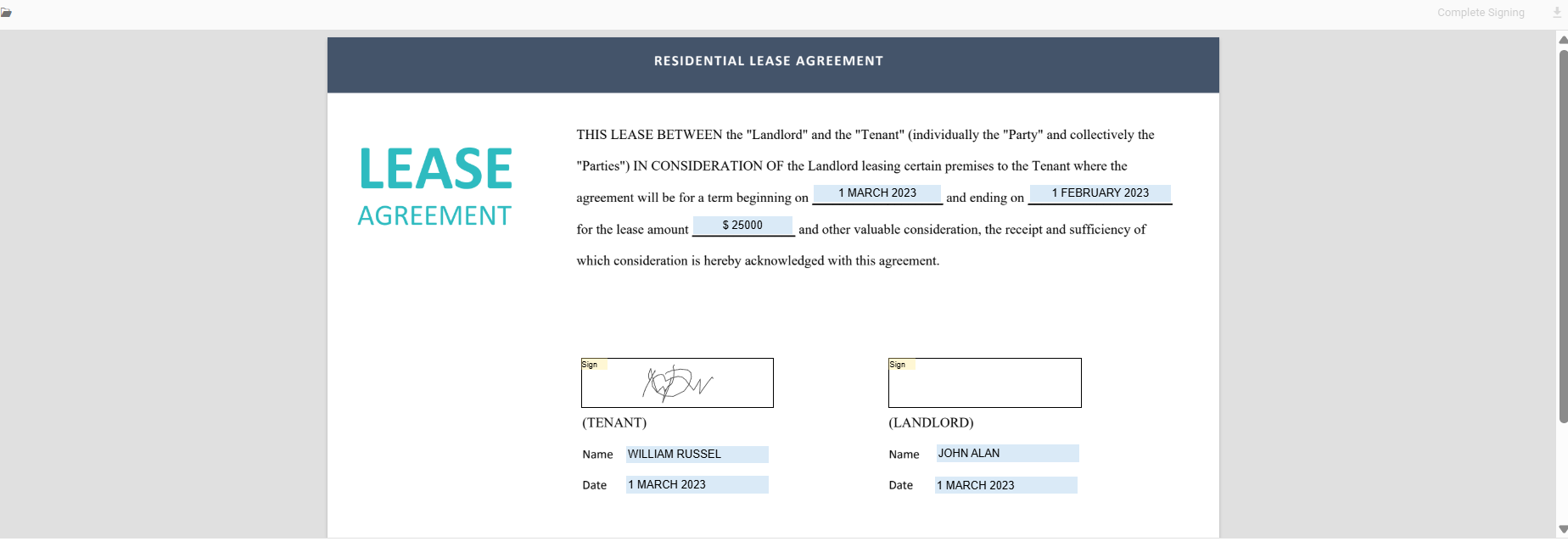
Digital signatures add a cryptographic layer of security, ensuring documents remain unchanged and authentic. They play a critical role in compliance and secure workflows. With Syncfusion PDF Viewer, users can view digitally signed PDFs right inside the app for transparency and trust.
Want to explore every option and advanced features for signatures? Check out the official documentation.
Add and manage form fields to fill PDF forms in your web app
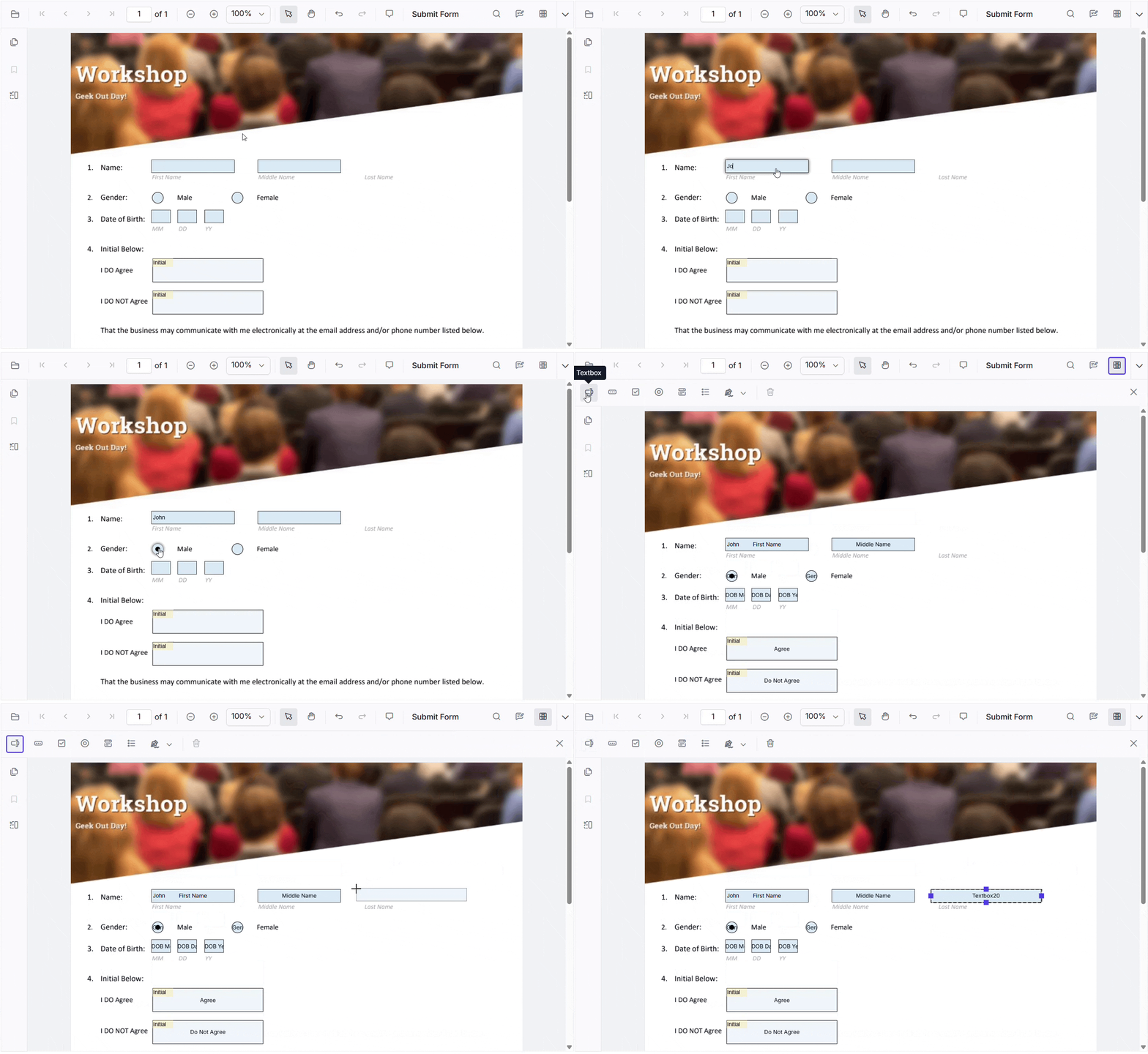
Take your PDFs beyond static content! Transform them into smart, data-ready documents with our form-filling and form-designer support.
Not only can you display and fill in PDF forms, but you can also create brand-new forms using standard elements like text boxes. This gives developers complete flexibility to design forms that fit any use case, from simple data entry to complex workflows.
Users can add form fields directly by clicking on the form designer option in the built-in toolbar and selecting the type of field they want, such as:
- Text box,
- Dropdown,
- Checkbox,
- Radio button.
See the diagram below for clarity.
Programmatic interaction with form fields
Syncfusion doesn’t just stop at UI-based form creation and filling; it gives developers complete control through powerful APIs. You can programmatically add new form fields, update their values, or remove them entirely with just a few lines of code.
pdfviewer.formDesignerModule.addFormField("Textbox", {
    name: "Last Name",
    bounds: { X: 146, Y: 229, Width: 150, Height: 24},
    pageNumber: 1
});
To explore all form field types and advanced customization options with detailed code examples, check out our:
Organize PDF pages: Add, remove, and reorder pages easily
Keep your PDFs neat and perfectly ordered with Syncfusion JavaScript PDF Viewer. Easily add, delete, or remove pages from a PDF document, all within your web app.
No need to switch tools or download extra software. Everything happens in one place, so your users can manage PDFs quickly and stay focused on their work.
To do this, click on the Organize PDF tool in the sidebar, which opens a dialog where you can easily customize your PDF document, add, remove, or reorder pages, and then save and view it seamlessly in the viewer.
Note: For more details, refer to the organize pages and customize page toolbar documentation.
Advanced features to optimize PDF editing
Beyond core capabilities, Syncfusion JavaScript PDF Viewer includes a range of advanced features that make your PDF editing experience faster, more secure, and highly efficient. These capabilities are designed to enhance navigation, speed up operations, and help you deliver results quickly.
Once your edits are complete, you can download the final document or print it instantly, ensuring a seamless workflow for your web apps.
Here’s what makes navigation and editing effortless:
Together, these features transform Syncfusion JavaScript PDF Viewer into a high-performance PDF editor, optimized for speed and user experience.
Frequently Asked Questions
Can I integrate the Syncfusion PDF Editor with modern JavaScript frameworks?
Yes, you can. Syncfusion’s JavaScript PDF Viewer is designed with a modular architecture. It can be easily integrated with modern frameworks like Angular, React, and Vue. With proper lifecycle configuration, it fits seamlessly into your existing app.
Can I capture annotation metadata for review workflows?
Absolutely. You can access annotation details, such as the author name, timestamp, and other properties, programmatically. This makes it easy to build structured review workflows and track changes externally.
Can I make form fields read-only after users fill them?
Yes. The viewer provides APIs to dynamically update form field properties. For example, you can mark fields as read-only once a form is submitted to prevent further edits.
Can annotations be exported separately from the PDF?
Yes. Syncfusion allows you to export annotation data independently. This is especially useful for saving, sharing, or reusing annotations in collaboration and workflow scenarios.
Is the Syncfusion PDF Editor mobile responsive?
Yes, it is fully responsive. The PDF Viewer adapts well to various screen sizes, ensuring a smooth experience across desktops, tablets, and mobile devices.
Can I integrate it with cloud storage services?
Yes. You can connect the viewer to cloud storage platforms such as Azure Blob Storage, AWS S3, and others using custom APIs for loading and saving documents.
Does it support accessibility features?
Yes. Syncfusion includes built-in accessibility support, such as keyboard navigation, screen reader compatibility, and enhanced document interaction to ensure inclusive usage.
Build a full‑featured PDF editor without the heavy lifting
Thanks for reading! Choosing the right approach for building a PDF editor depends on what you want to achieve. If your goal is to have a simple view, lightweight libraries might be enough. But if you need advanced capabilities like annotations, form fields, page organization, and seamless navigation, a more comprehensive solution will save time and effort.
- Think about your priorities: performance, flexibility, and integration options.
- Do you need a ready-to-use UI for quick deployment, or programmatic APIs for full customization?
- Will your app run on multiple frameworks and platforms?
These questions help you decide whether to start from scratch or leverage a feature-rich library that scales with your project. With the right foundation, you can create a fast, secure, and developer-friendly PDF experience that fits your workflow perfectly.
Syncfusion JavaScript PDF Viewer provides a comprehensive set of features, making integration simple with just a few lines of code.
If you’re an existing Syncfusion customer, you can download the latest version from the License and Downloads page. New users can start with a 30-day free trial to explore all features.
For questions or feedback, feel free to reach out via our support forum, support portal, or feedback portal. We’re here to help you!
PakarPBN
A Private Blog Network (PBN) is a collection of websites that are controlled by a single individual or organization and used primarily to build backlinks to a “money site” in order to influence its ranking in search engines such as Google. The core idea behind a PBN is based on the importance of backlinks in Google’s ranking algorithm. Since Google views backlinks as signals of authority and trust, some website owners attempt to artificially create these signals through a controlled network of sites.
In a typical PBN setup, the owner acquires expired or aged domains that already have existing authority, backlinks, and history. These domains are rebuilt with new content and hosted separately, often using different IP addresses, hosting providers, themes, and ownership details to make them appear unrelated. Within the content published on these sites, links are strategically placed that point to the main website the owner wants to rank higher. By doing this, the owner attempts to pass link equity (also known as “link juice”) from the PBN sites to the target website.
The purpose of a PBN is to give the impression that the target website is naturally earning links from multiple independent sources. If done effectively, this can temporarily improve keyword rankings, increase organic visibility, and drive more traffic from search results.